Table of Contents
Online Help > Placemarks > Waypoints
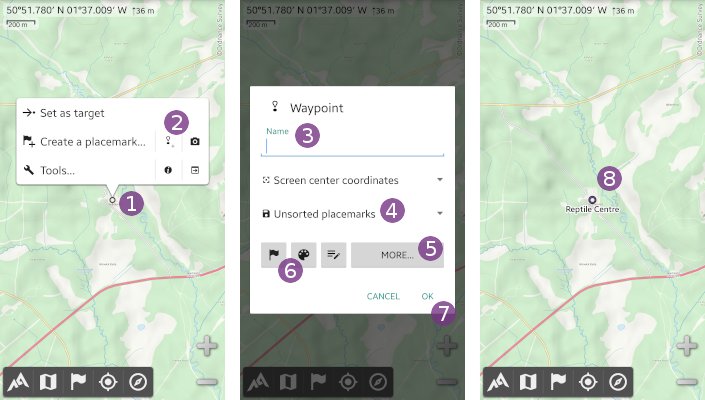
How to create a waypoint?
- Move the screen center icon
 over the location where you want to create your waypoint and tap it;
 - Tap the
“Waypoint” icon right to
 “Create a placemark…”; - If desired, type a name in the
“Name” text field;
 - If desired, change the folder
 in which to save the waypoint;
 - If desired, change other properties like the color or the icon by tapping on
“More…” or on an
 “Icon”,“Picture”or“Comment”shortcut icon ;
; - Tap
“Ok” to validate;
 - The waypoint is saved and displayed on the map
 .
.
How to edit a waypoint?
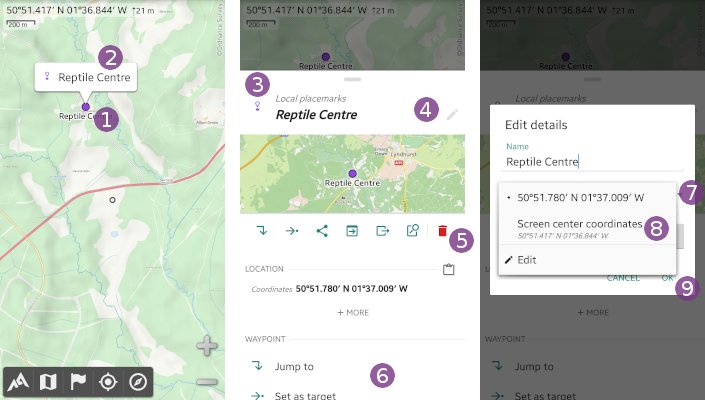
To edit the properties of an existing waypoint:
- Tap on the waypoint displayed on the map, and on its name ;
- In the scrolling menu:
- Tap on the waypoint icon to quickly change its color;
- Long-press the waypoint icon to quickly change its icon;
- Tap on the waypoint title bar to edit all its properties;
- Tap on the
“Delete” shortcut icon to permanently delete it; - Scroll down the menu to access all other functions.
To move a waypoint to the map center location:
- Tap on the waypoint title bar to edit all its properties;
- Tap the current waypoint coordinates;
- Choose the
“Screen center coordinates”; - Tap
“Ok” to validate.